
CONSTRUCTION SOFTWARE FOR SMALL TEAMSA clear place
A clear place
for your work.
Organize jobs, company records, and teamwork in one business workspace. Keep your plans, estimates, costs, and invoices connected as the work moves forward.
Start your 7-day free trialNo card required. $25/month after your trial, only if you choose to subscribe.
iPhone, Android, tablet and computer. One company workspace.
One project. Every step connected.
Build your estimate
Track job costs
Invoice & collect
Review your profit
Follow the number from plan to profit.
Actual ScopeMesa screens using a labeled practice project. Open an image for a closer look.
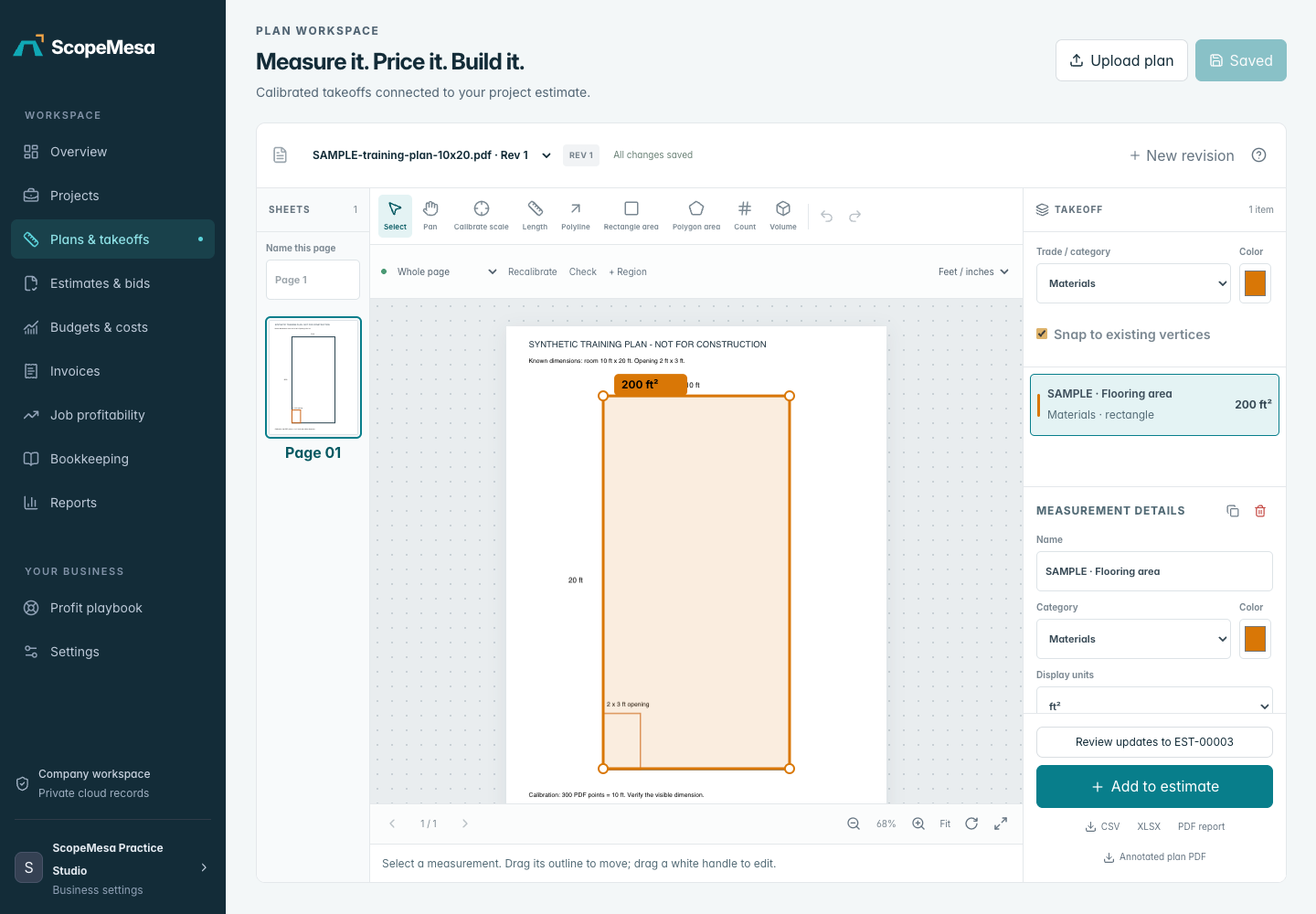
Measure the scope
Calibrate a known distance and keep the saved quantity with its drawing.
Practice project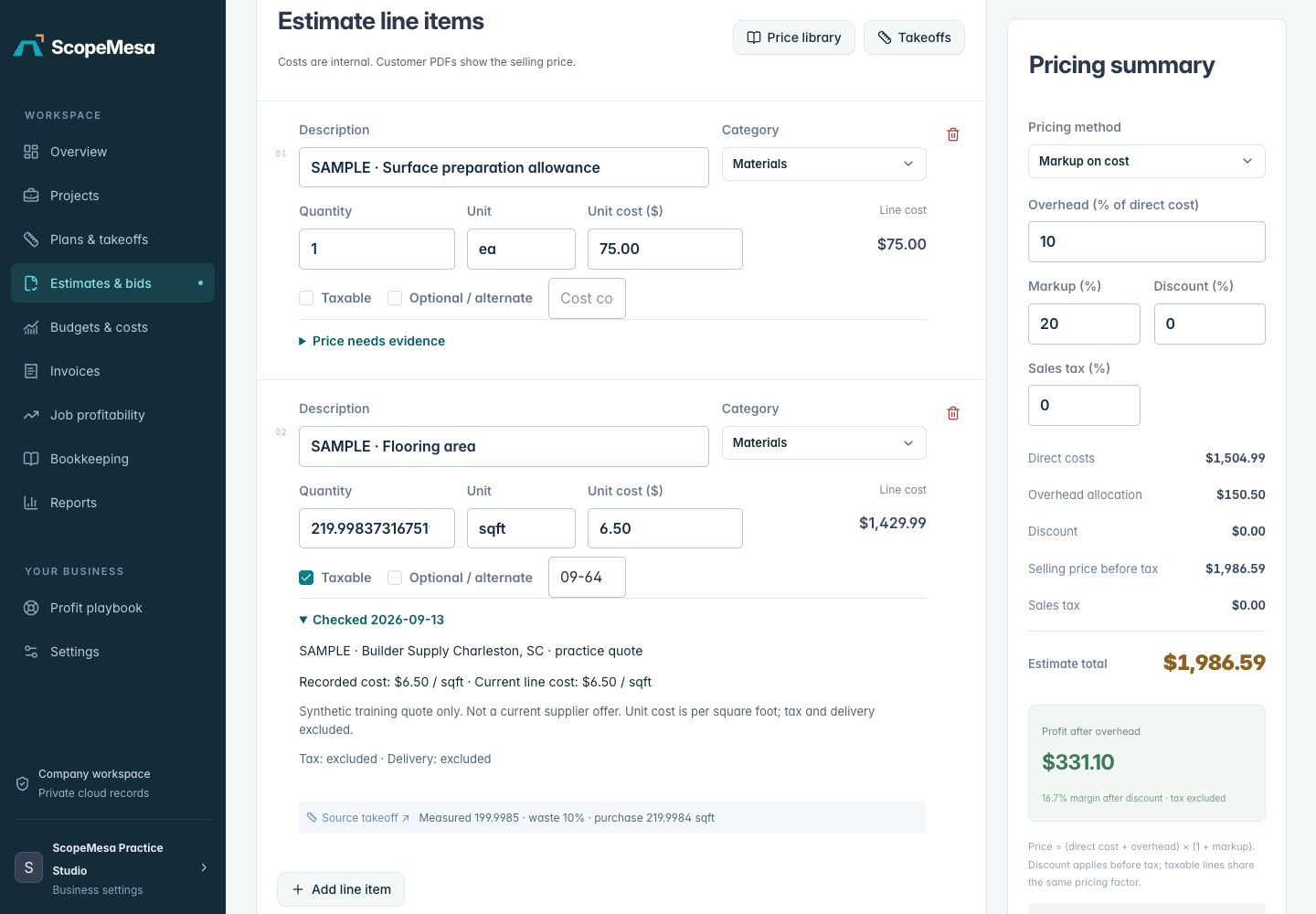
Review the bid
Check measured quantities, supplier assumptions and the selling-price calculation.
Practice project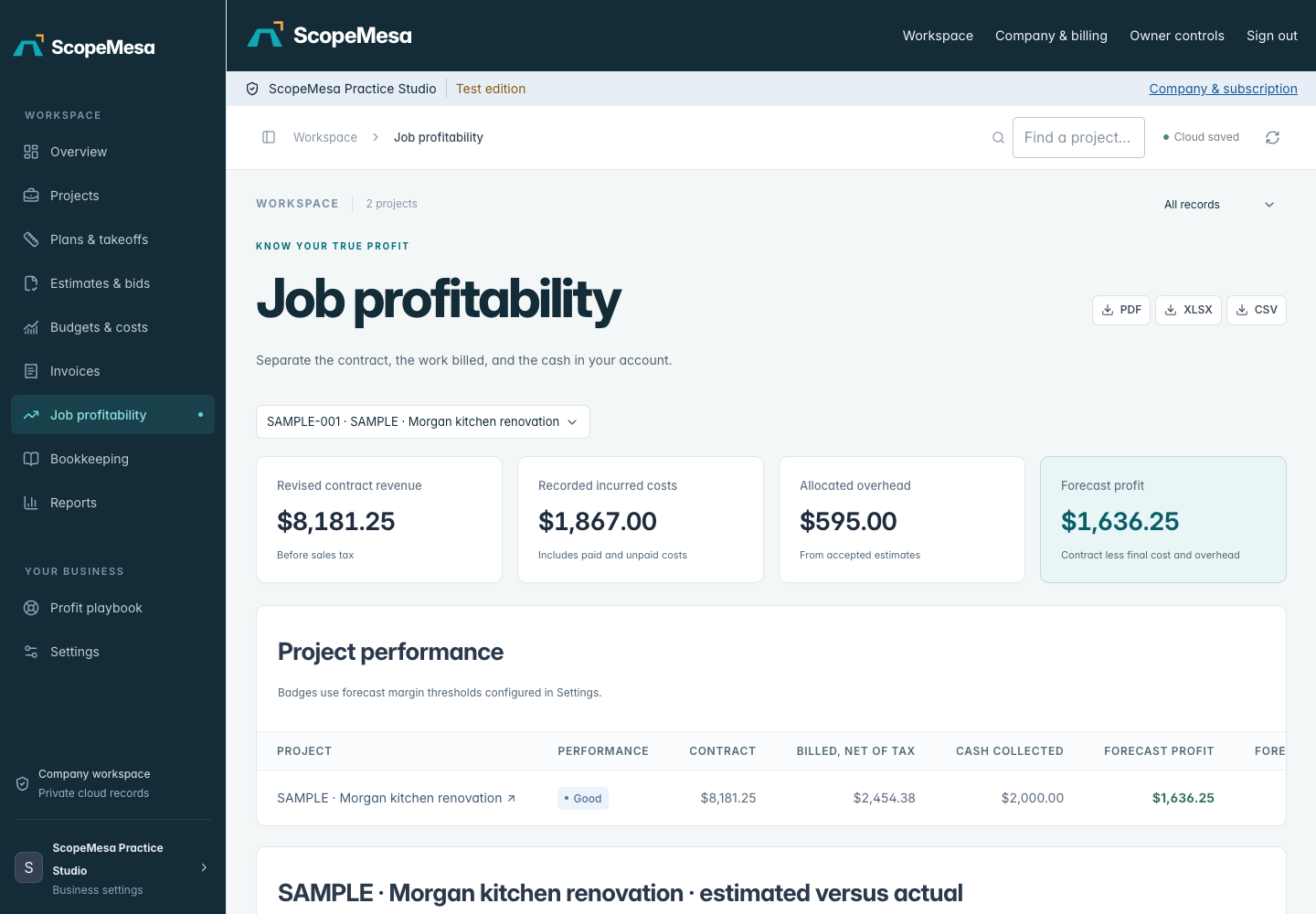
See the job result
Compare contract value, costs, invoices and forecast profit.
Practice projectGUIDED PRODUCT TOUR
ScopeMesa, PocketMind & Virtual Estimator: guided tour.
Explore the browser workspace, focused PocketMind chat and Pro media controls, then follow Virtual Estimator from source evidence to reviewed quantities, supplied rates and an editable backup.
Read the tutorial transcript
ScopeMesa, PocketMind & Virtual Estimator: guided tour AI narration. Synthetic demonstration using fictional practice data and prices. No live app AI, web or media requests are submitted. Guided estimate saving, exports and project approval are described, not completed in this tour. Finish ledgers stay in this tab's browser session; Download JSON keeps an editable backup.
00:00:00.000 — One browser workspace Welcome to Scope Mesa. This tour introduces your company workspace, Pocket Mind, and Virtual Estimator. Open Scope Mesa in your browser on a computer or phone. No app download is required. The screens in this tour use clearly labeled practice data and fictional prices.
00:00:25.280 — ScopeMesa: follow the job Use Scope Mesa to keep project records connected. Start with a project, then move through plans, takeoffs, estimates and bids. Budgets, recorded costs and invoices help you follow the job. Reports depend on the information you enter and review; a dashboard is not a guarantee of profit.
00:00:47.689 — PocketMind: ask and follow up Open Pocket Mind for everyday questions, writing and planning. Chat has a focused conversation and a composer at the bottom. Ask a clear question, then add a follow-up to refine the answer. Press Enter to send, or Shift and Enter for a new line. Sample conversations in this tour are demonstrations.
00:01:12.069 — History, memory and consent Use conversation history to return to earlier chats. Save useful preferences in Things to remember, and choose whether a reply may use those memories. Review the consent controls before sending. Pocket Mind does not automatically read every company record, and you should check important answers against reliable sources.
00:01:43.569 — Images and files with Pro Images and files are in the separate Pro tab. Here you can prepare image requests or select photos and PDFs for analysis. Review the prompt, selected file and sharing consent before sending. Availability depends on your plan, enabled features and remaining allowance. This tour shows the review controls without submitting a paid media request.
00:02:07.569 — Virtual Estimator has its own home Estimating now has its own home. Choose Virtual Estimator in the sidebar, or Estimator on the mobile navigation. Pocket Mind remains your general assistant. Virtual Estimator offers two tools: Guided estimate, and Finish ledger.
00:02:29.449 — Guided estimate In Guided estimate, describe the job or attach a PDF you are authorized to use. Supply the facts you know. Review the rooms, measurements, scope and prices. Missing information needs confirmation. AI suggestions are a starting point for your review, not verified measurements or a completed bid.
00:02:52.194 — Review, export and approve separately Save the exact reviewed version before relying on its estimate. Where available, the client estimate PDF presents the selling scope and price, while the internal Excel workbook includes costs and source evidence. Applying a saved estimate to a project requires a separate approval. Downloading a file does not approve a project change.
00:03:13.896 — Finish ledger: quantities with evidence Finish ledger brings the reviewed finish workflow into the browser. Keep flooring, wall finishes, base and applied wall products separate. Enter or import quantities with their source hash, physical page and measurement basis. Review exclusions, unresolved items and ranges. Selecting a source file for its hash reads it locally; that step does not upload the file.
00:03:40.308 — Supplied rates, visible unknowns For pricing, enter your own material and labor rates. In our fictional practice row, one hundred twenty square feet at two dollars for material and three dollars for labor extends to six hundred dollars. A second item is on hold, so this is only a priced subset. Missing quantities or rates prevent a complete estimate.
00:04:02.485 — Keep an editable backup Guided estimate reviews use the existing cloud save workflow. Finish ledgers currently stay in this tab's browser session for the selected account and company. Choose Download JSON to keep an editable backup or move it to another device. CSV provides a review summary. Finish ledgers are not yet synchronized to your cloud projects.
00:04:24.308 — Start with a practice job On your phone, use the same online app and the Estimator and Mind navigation shortcuts. Your separate Mac Virtual Estimator remains intact. Start with a practice job, keep source evidence, review the numbers and preserve your backup. Scope Mesa organizes the work, Pocket Mind helps you think, and Virtual Estimator focuses the estimating process.
Download the text transcriptKnow where the number came from.
Open a bid quantity back on its plan. Record the supplier, location and date behind a library price, and see when it needs review.
Keep approved scope intact.
Review drawing changes before updating draft quantities. Accepted estimates preserve the prices and scope you agreed.
See the job beyond the bid.
Carry accepted work into the budget. Compare costs, outstanding invoices and forecast profit in the same project.
SEE IT WITH YOUR OWN WORKFLOW
Request a free walkthrough.
Tell us about your trade and the estimating problem you want to solve.
Share what you want to see and the questions you want to cover. Submitting this form requests a walkthrough; it does not reserve an appointment. Optional follow-up messages require your consent.
You can also submit support requests from your company account.
REVIEWS & COMMENTS
Your experience shapes ScopeMesa.
Tell us what helps on the job and what could work better.
Loading reviews…